
Microsoft Teams
This guide sets up Microsoft Teams as the chat interface for Layer 9.
Prerequisites
Section titled “Prerequisites”- Administrator access to Microsoft Teams
- Access to Microsoft Teams admin center
Step 1: Coordinate with Layer Nine Team
Section titled “Step 1: Coordinate with Layer Nine Team”Contact the Layer Nine team to obtain your organization-specific connection link.
Step 2: Grant Permissions
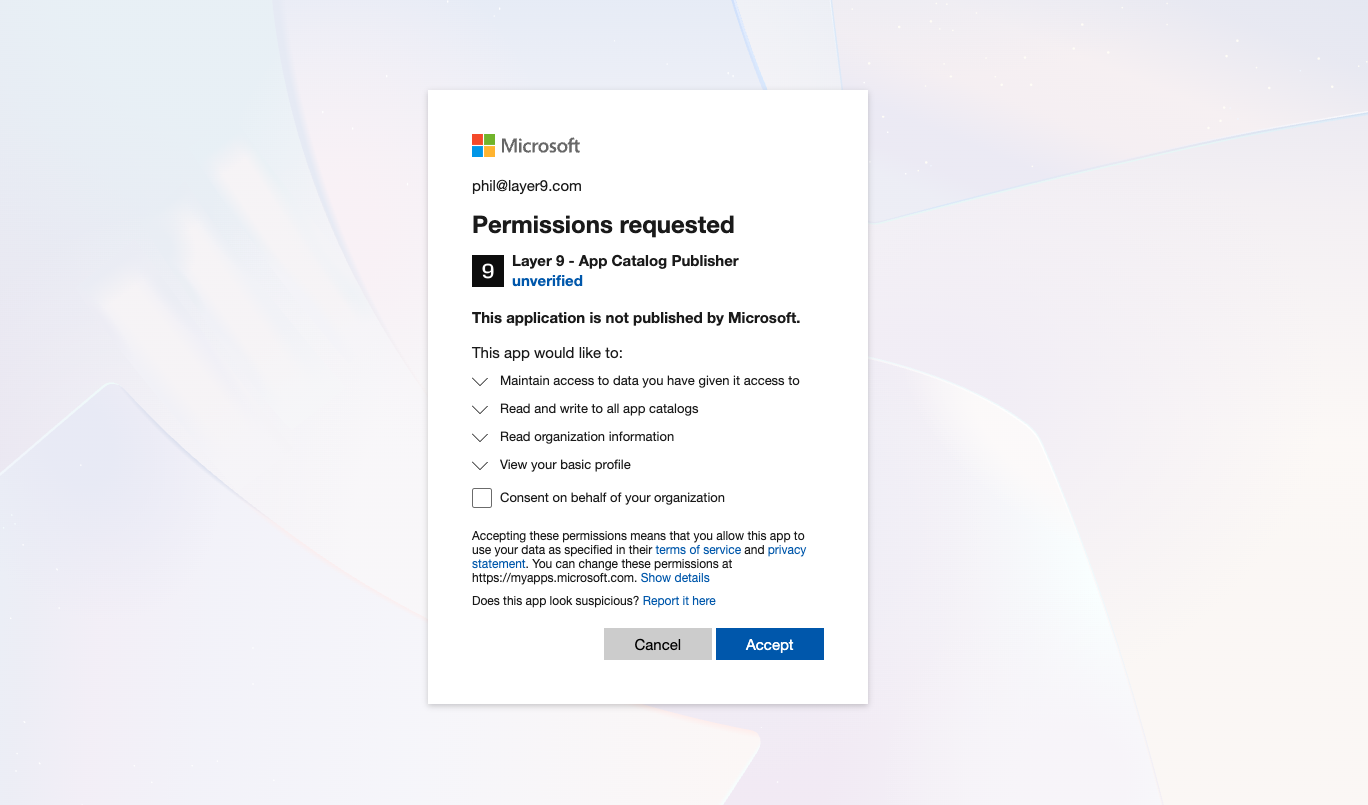
Section titled “Step 2: Grant Permissions”Open the link, and, when prompted, click Accept to grant permission to the Layer 9 - App Catalog Publisher application. This allows Layer Nine to publish the Layer 9 Teams application to your app catalog.
Step 3: Confirm Published
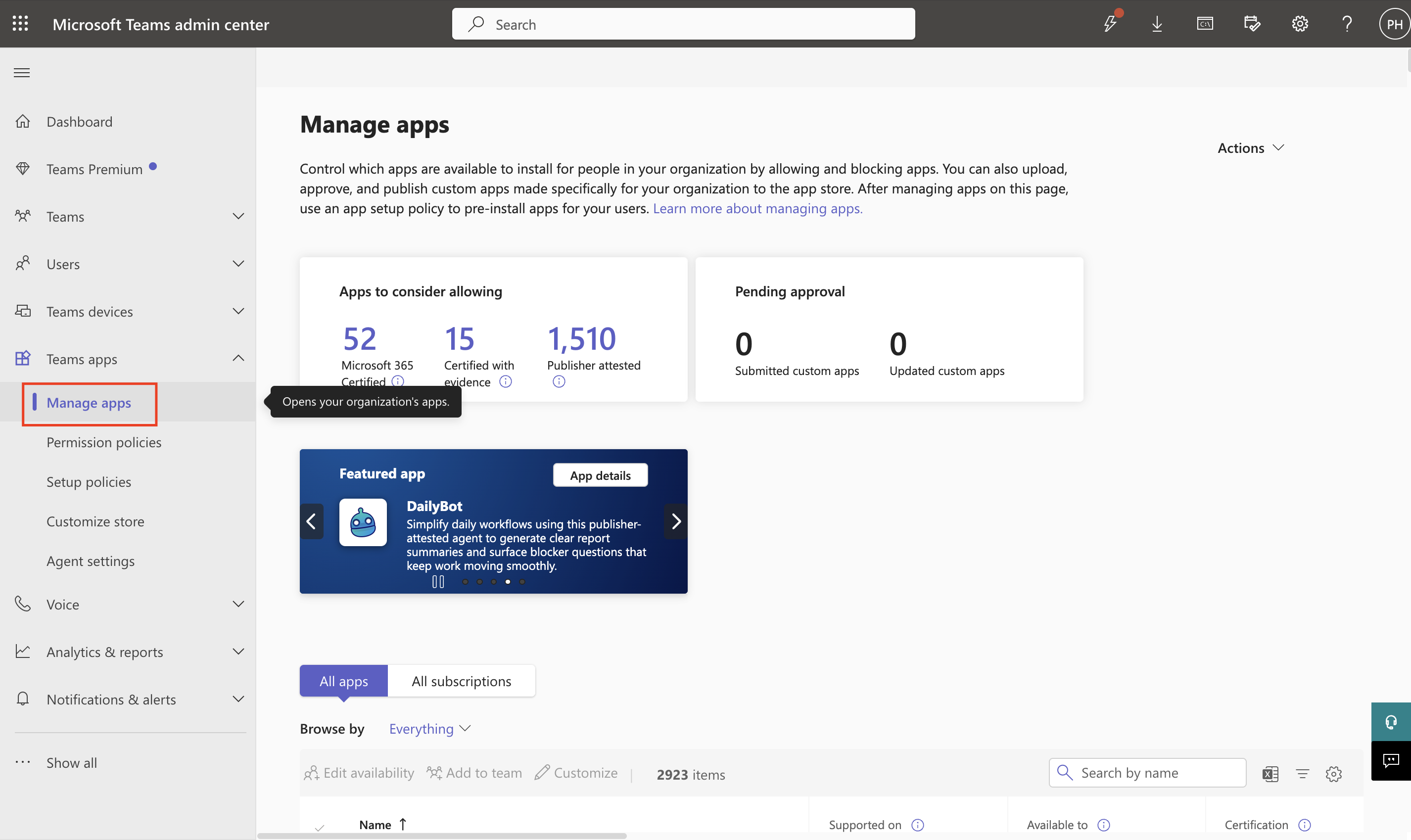
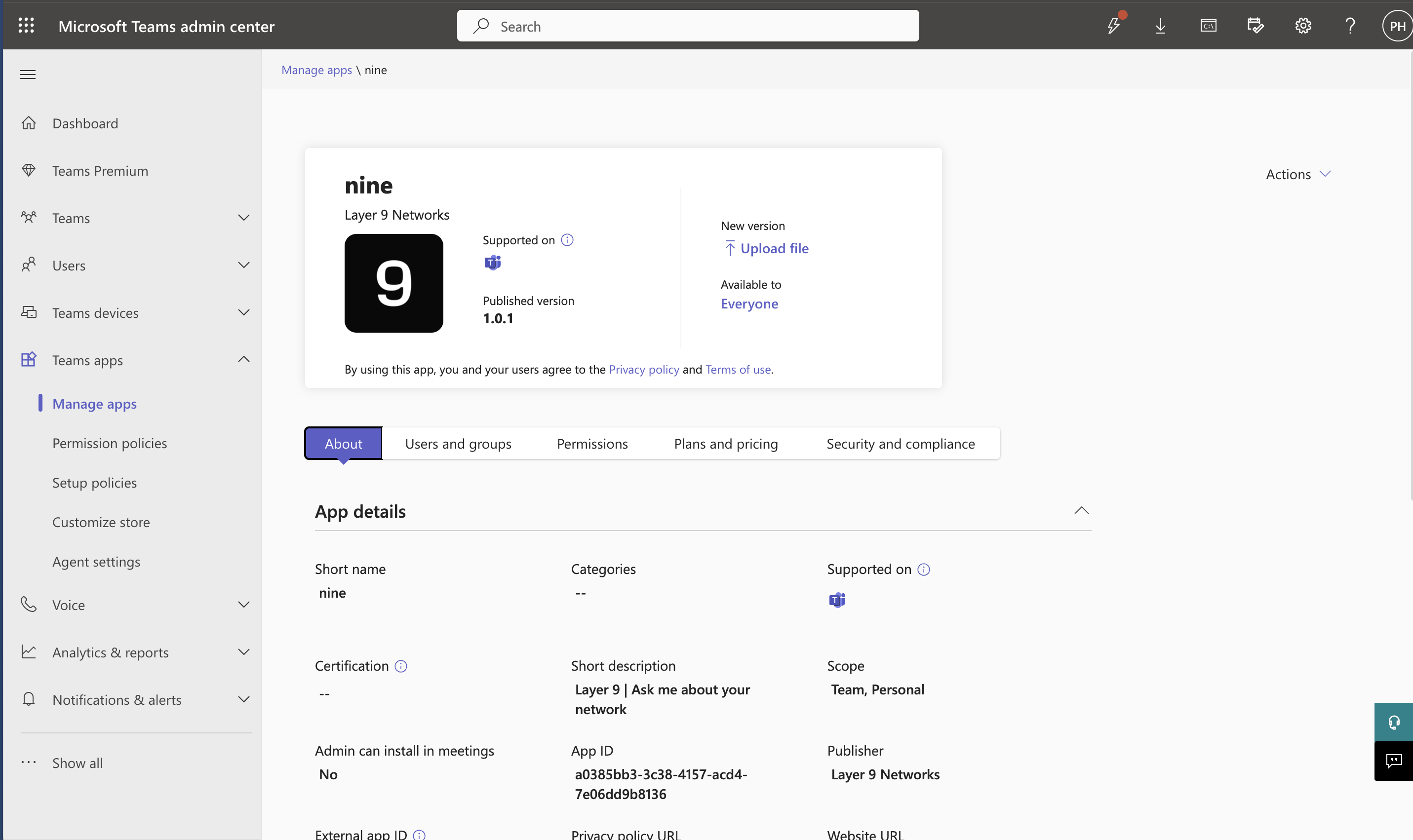
Section titled “Step 3: Confirm Published”Navigate to the Microsoft Teams admin center and select Manage Apps.
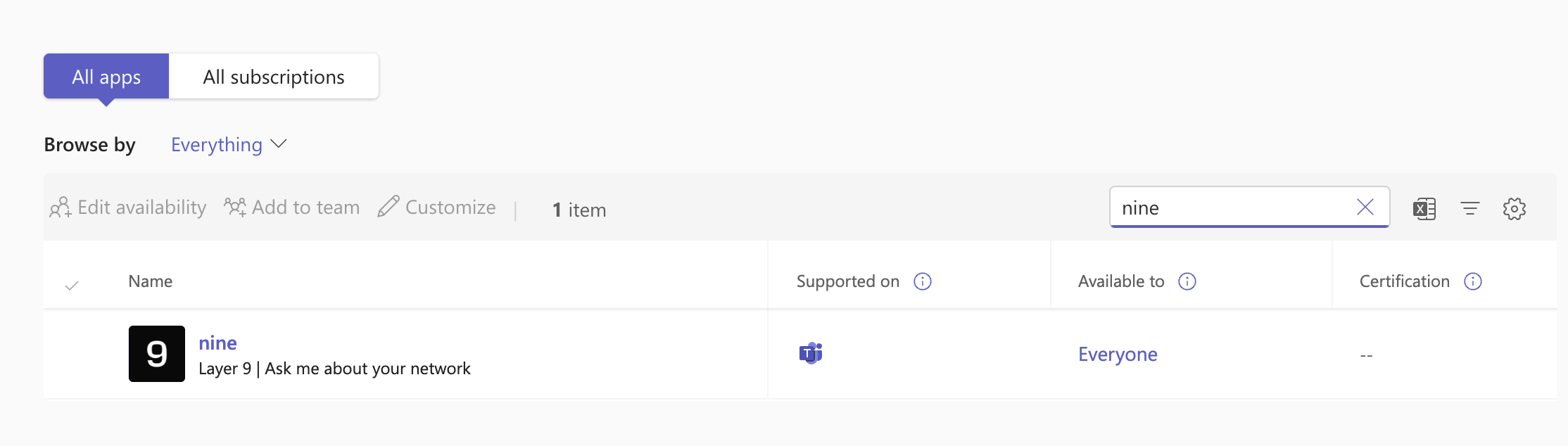
You should now see the nine app in the list of applications available in your Microsoft Teams organization.
Step 4: Install Layer 9 in Your Desired Teams
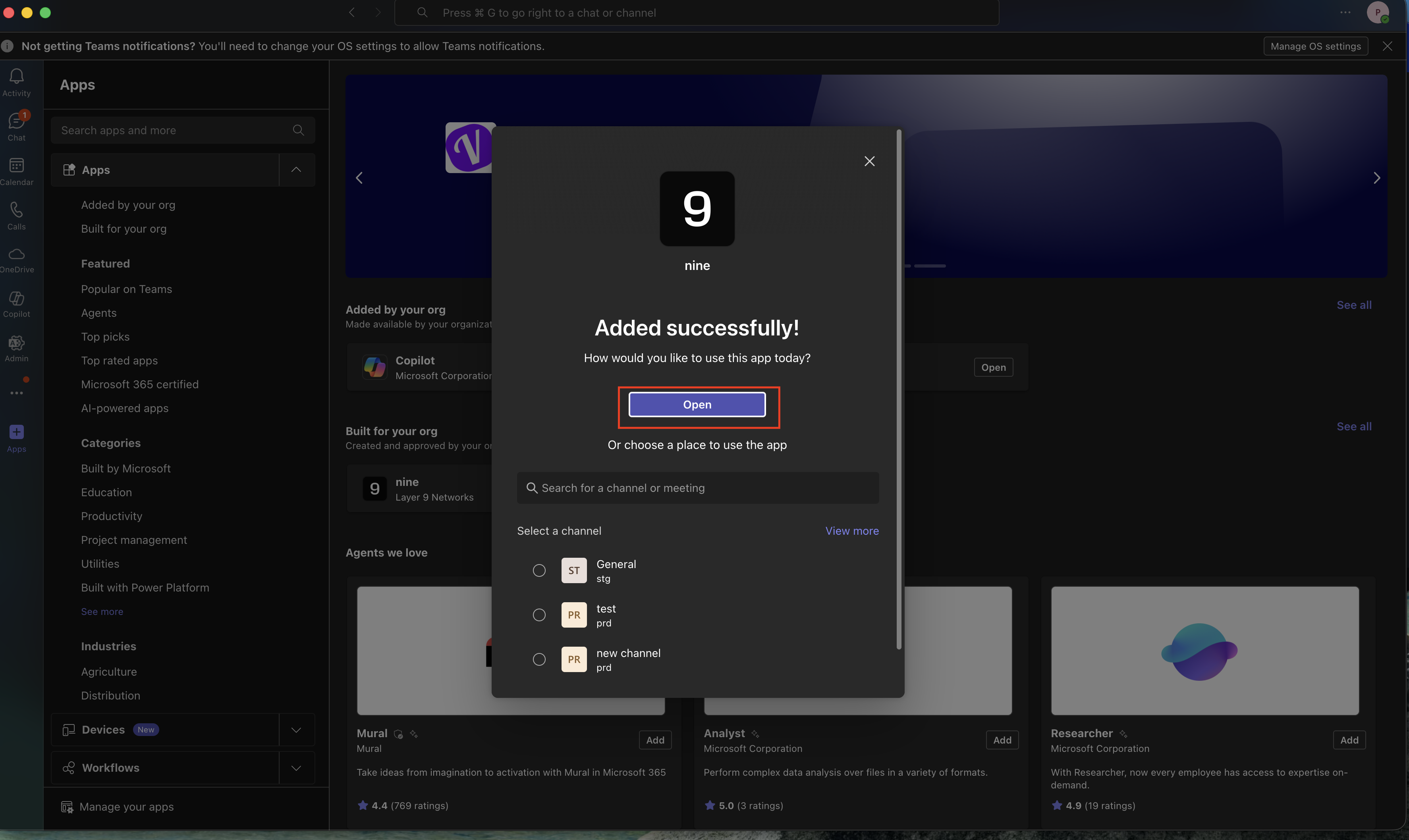
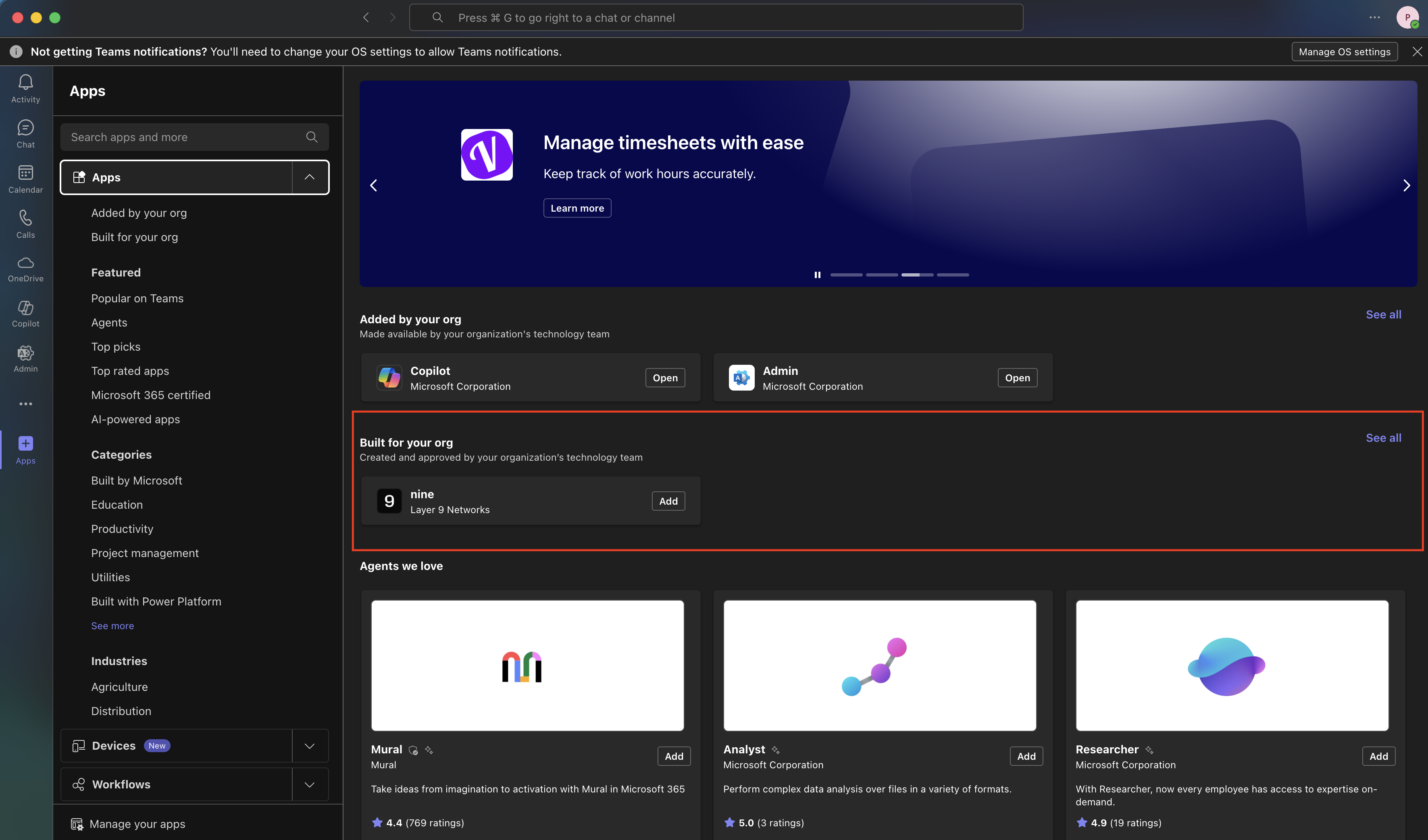
Section titled “Step 4: Install Layer 9 in Your Desired Teams”Open the Microsoft Teams app and navigate to the Apps section in the left-hand sidebar.
In the Made for your org section, you should see nine by Layer 9 Networks. You may need to select See All to find it. Click the Add button on the app tile.
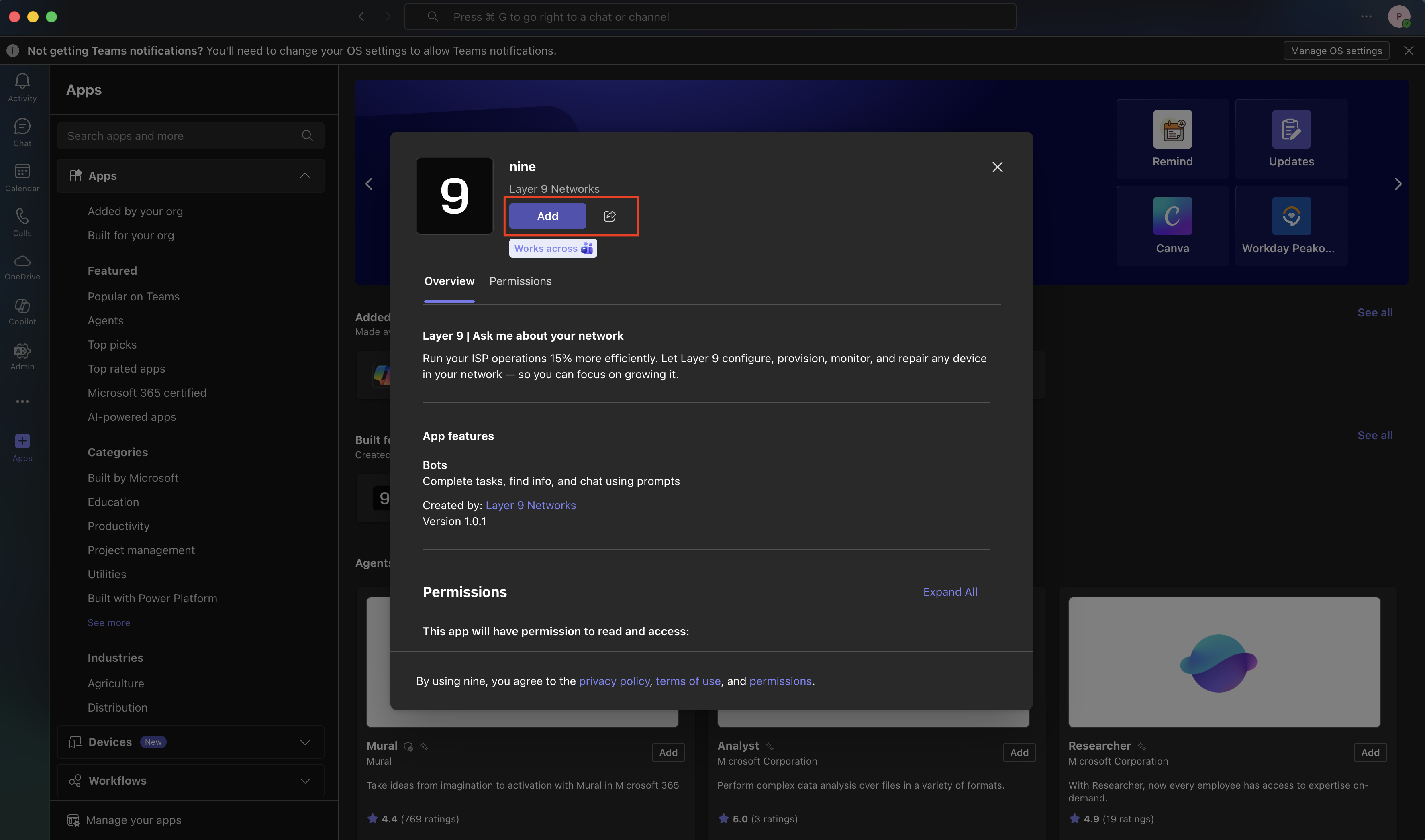
A modal will open showing more details about the nine app. Click Add on this modal to add it to your Teams app.
Step 5: Chat with Layer 9
Section titled “Step 5: Chat with Layer 9”The nine chatbot is now integrated and ready to use. Ask about a subscriber or network site to get more information about your network.