

Plume
This guide includes instructions for generating a Plume API token and locating your Partner ID so you can connect Plume to Layer 9.
Prerequisites
Section titled “Prerequisites”- Access to the Plume Partner Portal with administrator privileges
- Ability to generate API tokens in the portal
Step 1: Log in and open Configuration
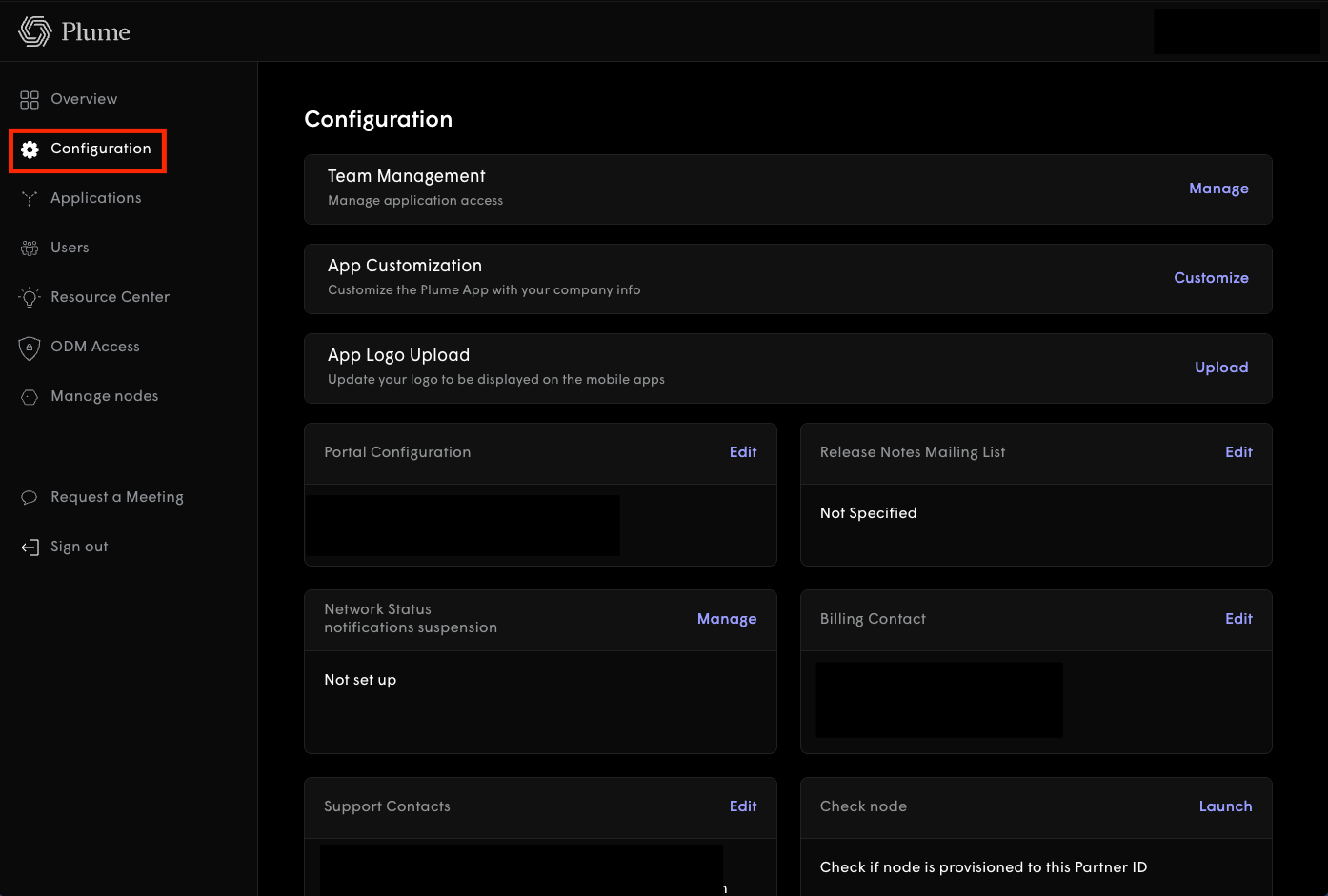
Section titled “Step 1: Log in and open Configuration”Sign in at https://portal.plume.com/account. You land on the Configuration page by default. If you are not already there, select Configuration from the navigation menu on the left-hand side of the page.
Step 2: Edit API token generation
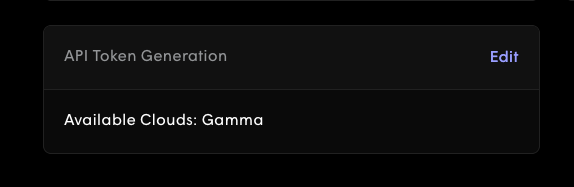
Section titled “Step 2: Edit API token generation”Locate the API token generation section and select Edit.
Step 3: Name the token and set the duration
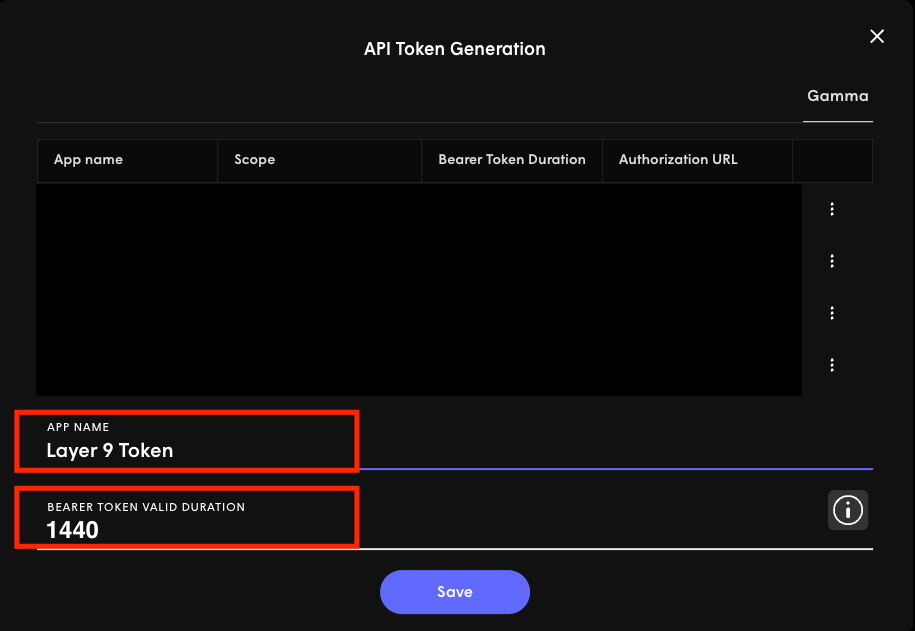
Section titled “Step 3: Name the token and set the duration”In the modal that appears, enter a recognizable name for the token, such as Layer 9, and set the Bearer Token valid duration to 1440. Then generate the token.
Note the region shown in the modal (e.g. Gamma) — you will need to share it with the Layer 9 team in Step 5.
Step 4: Copy the authorization header, Partner ID, and Authorization URL
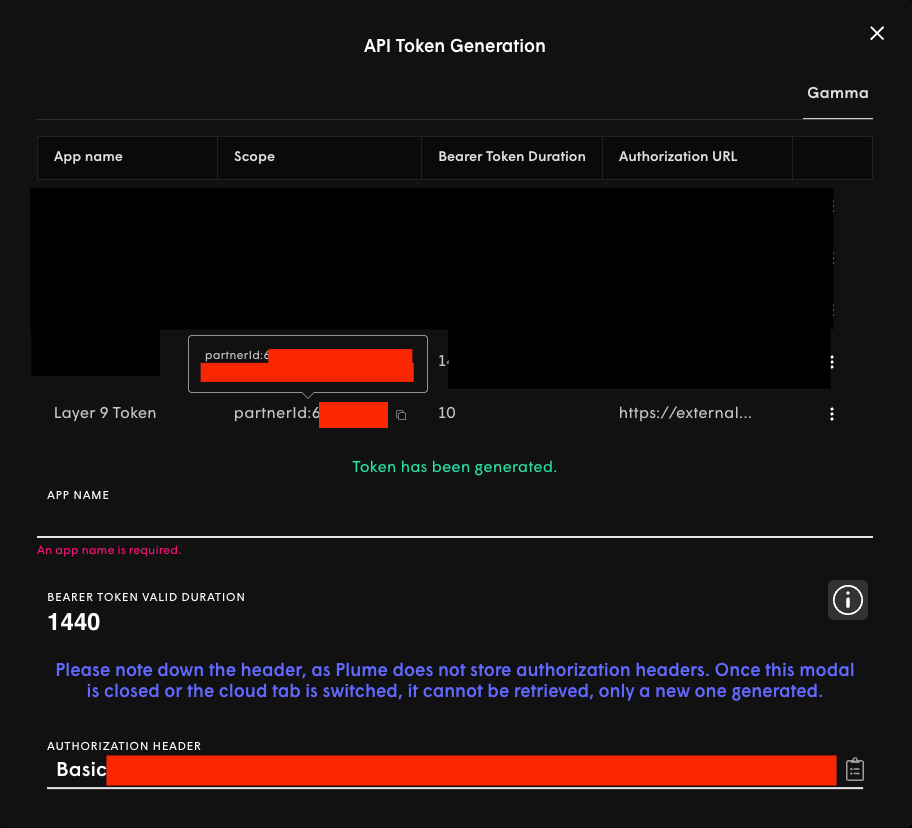
Section titled “Step 4: Copy the authorization header, Partner ID, and Authorization URL”Once the token has been generated, the modal displays the Authorization header, your Partner ID, and the Authorization URL. Copy all three values now.
Step 5: Share with the Layer 9 team
Section titled “Step 5: Share with the Layer 9 team”Send the following to the Layer 9 team through a secure channel:
- Authorization header — the value copied in Step 4
- Partner ID — the value copied in Step 4
- Authorization URL — the value copied in Step 4
- Region — the region the token was created for, shown in Step 3 (e.g. Gamma)